Check Mark Symbols
Check mark symbols to copy: the tick ✓, the heavy tick ✔, the ballot box ☑, the crosses ✗ ✘, the empty box ☐ and the emoji ✅ and ❌. Tap one to copy it with its Unicode name and code, then see how to make a checkbox in Word, Excel and Google Docs.
Check marks and crosses (text)
Check marks and crosses (emoji)
Check lines
Framed check lines
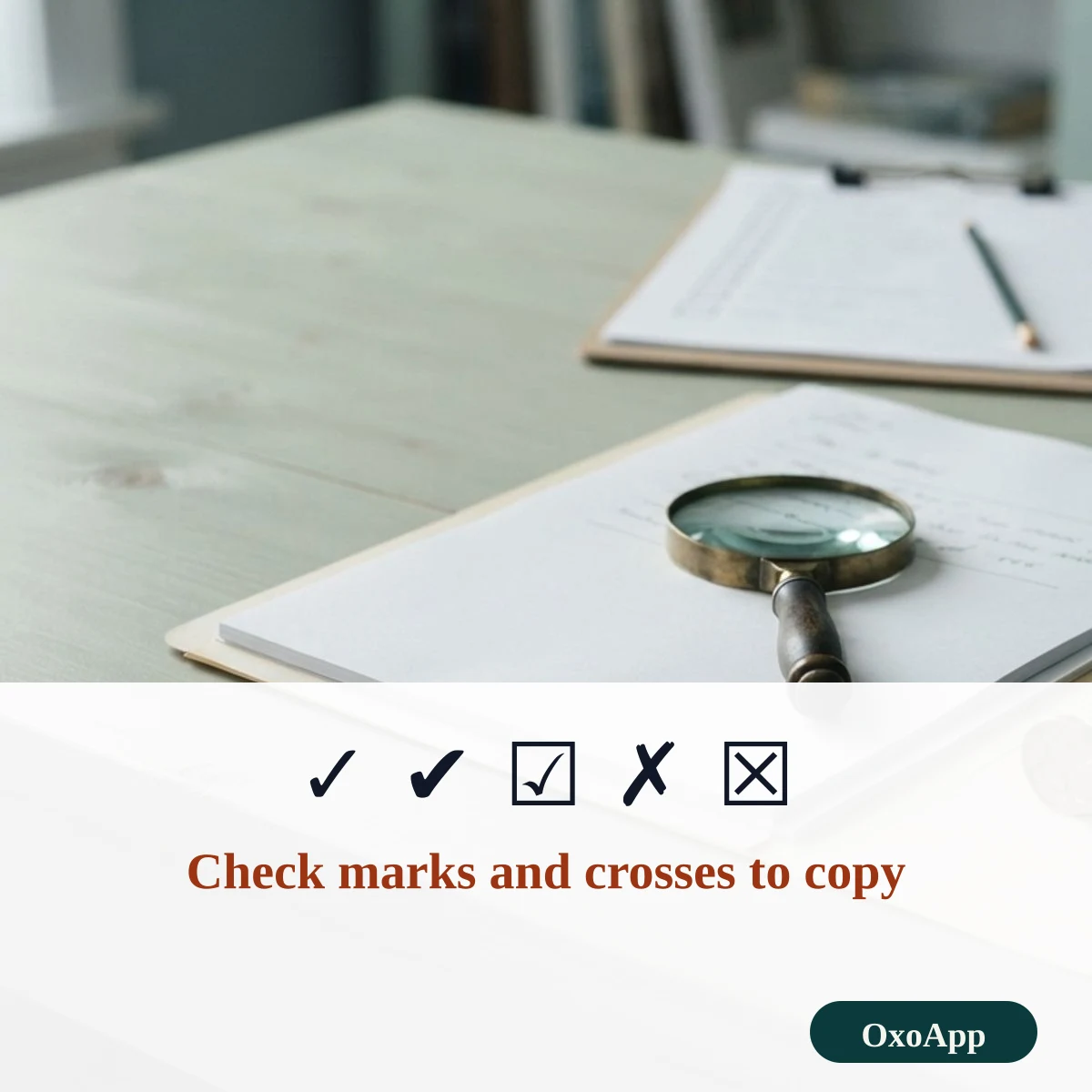
Copy a check mark in three steps
- Choose text symbols for a tick that matches your text, or emoji for a colored one.
- Tap the mark. It is copied and added to the selection box, where you can build a list such as ☑ one ☐ two.
- Paste it into your list, form or message. If a mark appears as a box, take ✓ or ☐, which almost every font has.
Check marks and crosses with names and codes
| Mark | Unicode name | Code | HTML | Word shortcut |
|---|---|---|---|---|
| ✓ | Check Mark | U+2713 | ✓ |
Alt+X after 2713 |
| ✔ | Heavy Check Mark | U+2714 | ✔ |
Alt+X after 2714 |
| ☑ | Ballot Box With Check | U+2611 | ☑ |
Alt+X after 2611 |
| ☐ | Ballot Box | U+2610 | ☐ |
Alt+X after 2610 |
| ✗ | Ballot X | U+2717 | ✗ |
Alt+X after 2717 |
| ✘ | Heavy Ballot X | U+2718 | ✘ |
Alt+X after 2718 |
| ☒ | Ballot Box With X | U+2612 | ☒ |
Alt+X after 2612 |
| ✅ | White Heavy Check Mark | U+2705 | ✅ |
Emoji keyboard |
| ❌ | Cross Mark | U+274C | ❌ |
Emoji keyboard |
Text marks, boxes and emoji
| Group | Kind | What to expect |
|---|---|---|
| ✓ ✔ ✗ ✘ | Text symbols | Take the color of the text; thin or heavy strokes |
| ☐ ☑ ☒ | Ballot boxes | Look like a form box; empty, ticked or crossed |
| ✅ ❌ ❎ | Emoji | Colored by the system; green tick, red cross |
| 🗸 🗹 | Light and bold ticks | From a newer block; fewer fonts have them |
The tick comes in a light form ✓ and a heavy form ✔. The ballot boxes ☐ ☑ ☒ look like a printed form, and the crosses ✗ ✘ mirror the ticks. The emoji ✅ and ❌ are drawn by the system and look different on each platform.
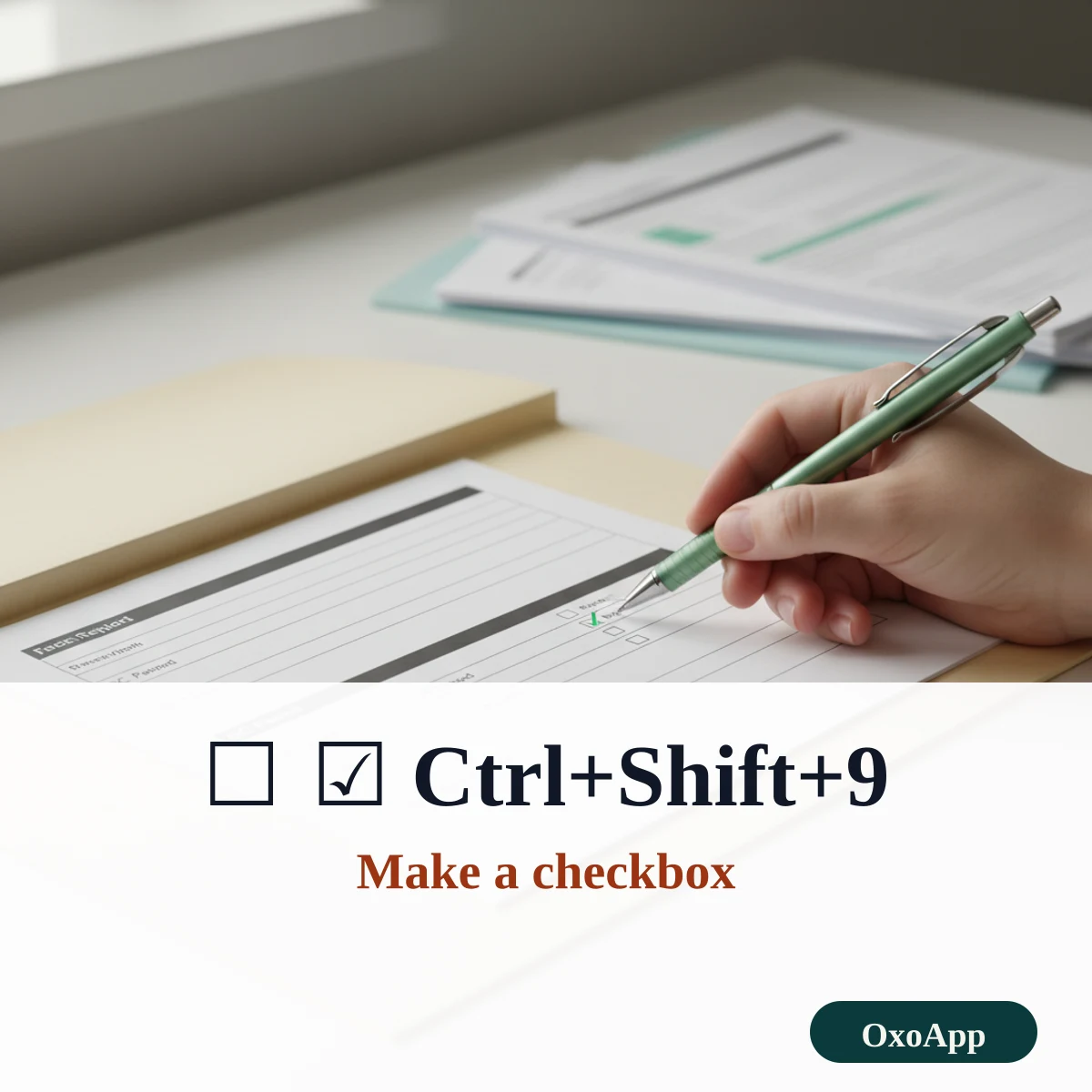
Checkboxes in Word, Excel and Google Docs
- Google Docs: Format, Bullets and numbering, Checklist, or Ctrl+Shift+9. The boxes can be clicked.
- Word: insert ☐ or ☑ from the Symbol dialog, or use a checkbox content control from the Developer tab.
- Excel: the common method is to set the cell font to Wingdings and type ü for a tick. A plain ✓ from this page also works in any font that has it.
A copied ☐ or ☑ is only a character. It does not tick itself, so use a checklist feature where you need clickable boxes.
Tick or square root
√ looks like a tick but is the square root sign. Use ✓ when you mean done or yes, and √ only in math. See the math symbols page for √ and the other signs of arithmetic.
Which mark for which job
- To-do lists: ☐ for open and ☑ for done.
- Feature tables: ✓ and ✗ are neat and light.
- Status messages: ✅ and ❌ are quick to spot, but they depend on the platform.
- Plain-text fields: ✓ and ✗ are the safest.
Device check
The marks are copied exactly as shown, with the code in the tables. We have not yet tested them on specific phones or systems. If one appears as a box, email [email protected] with the character, device and system version. More signs are on symbols copy and paste.
Frequently asked questions
What is the difference between ✓ and ✅?
✓ is the check mark, U+2713, a text symbol that takes the color of your text. ✅ is the white heavy check mark emoji, U+2705, which most phones draw as a green square with a white tick.
Is √ a check mark?
No. √ is the square root sign, U+221A. People sometimes type it as a tick because it is easy to find, but screen readers will say square root, and a search for check mark will not match it.
How do I make a checkbox in Google Docs?
Choose Format, then Bullets and numbering, then Checklist, or press Ctrl+Shift+9. Each line gets a box that you can click to tick.
How do I type ✓ on a keyboard?
In Word, type 2713 and press Alt+X. On a Mac or phone, open the character viewer or emoji keyboard, or copy the symbol from this page.
Back to OxoApp.
Updated