Arrow Symbols
Arrow symbols to copy and paste: 172 arrows from simple → ← ↑ ↓ and double ⇒ ⇔ to curved ↩ ↪, heavy ➜ ➤ and circular ↻. Tap any arrow to copy it with its Unicode name and code, and read how to type the common ones with a keyboard shortcut or HTML.
Simple and paired arrows
Double arrows
Curved, hooked and zigzag arrows
Circular arrows
Heavy and decorative arrows
Arrow emoji
Copy an arrow in three steps
- Pick a group or type left, up, double or hook in the filter. Every arrow shows its code under it.
- Tap the arrow. It is copied and added to the selection box, where you can put several in a row.
- Paste it into your text, slide, menu label or bio. If an arrow appears as a box, take a simple one from the first group.
The six groups of arrows
This page holds 172 arrows. Most come from the Arrows block, U+2190–U+21FF, and the heavy and decorative ones from the Dingbats block. The emoji group adds the colored forms.
| Group | Examples | Where in Unicode | Arrows |
|---|---|---|---|
| Simple | → ← ↑ ↓ ↔ | Arrows block U+2190–U+21FF | 65 |
| Double | ⇒ ⇔ ⇐ | Arrows block | 22 |
| Curved and hooked | ↩ ↪ ↝ | Arrows block | 20 |
| Circular | ↻ ↺ | Arrows block | 5 |
| Heavy and decorative | ➔ ➜ ➤ | Dingbats U+2794–U+27BE | 39 |
| Emoji | ➡️ ⬆️ ↩️ | Mixed, with U+FE0F | 21 |
Arrows you can type
| Arrow | Unicode name | Code | HTML | Windows Alt |
|---|---|---|---|---|
| ← | Leftwards Arrow | U+2190 | ← |
Alt+27 |
| ↑ | Upwards Arrow | U+2191 | ↑ |
Alt+24 |
| → | Rightwards Arrow | U+2192 | → |
Alt+26 |
| ↓ | Downwards Arrow | U+2193 | ↓ |
Alt+25 |
| ↔ | Left Right Arrow | U+2194 | ↔ |
Alt+29 |
| ↕ | Up Down Arrow | U+2195 | ↕ |
Alt+18 |
| ⇐ | Leftwards Double Arrow | U+21D0 | ⇐ |
– |
| ⇒ | Rightwards Double Arrow | U+21D2 | ⇒ |
– |
| ⇔ | Left Right Double Arrow | U+21D4 | ⇔ |
– |
In Word, the AutoCorrect option turns –> into → and <-- into ←, so you can type an arrow without a shortcut. A dash means there is no short key.

Text arrow or emoji arrow
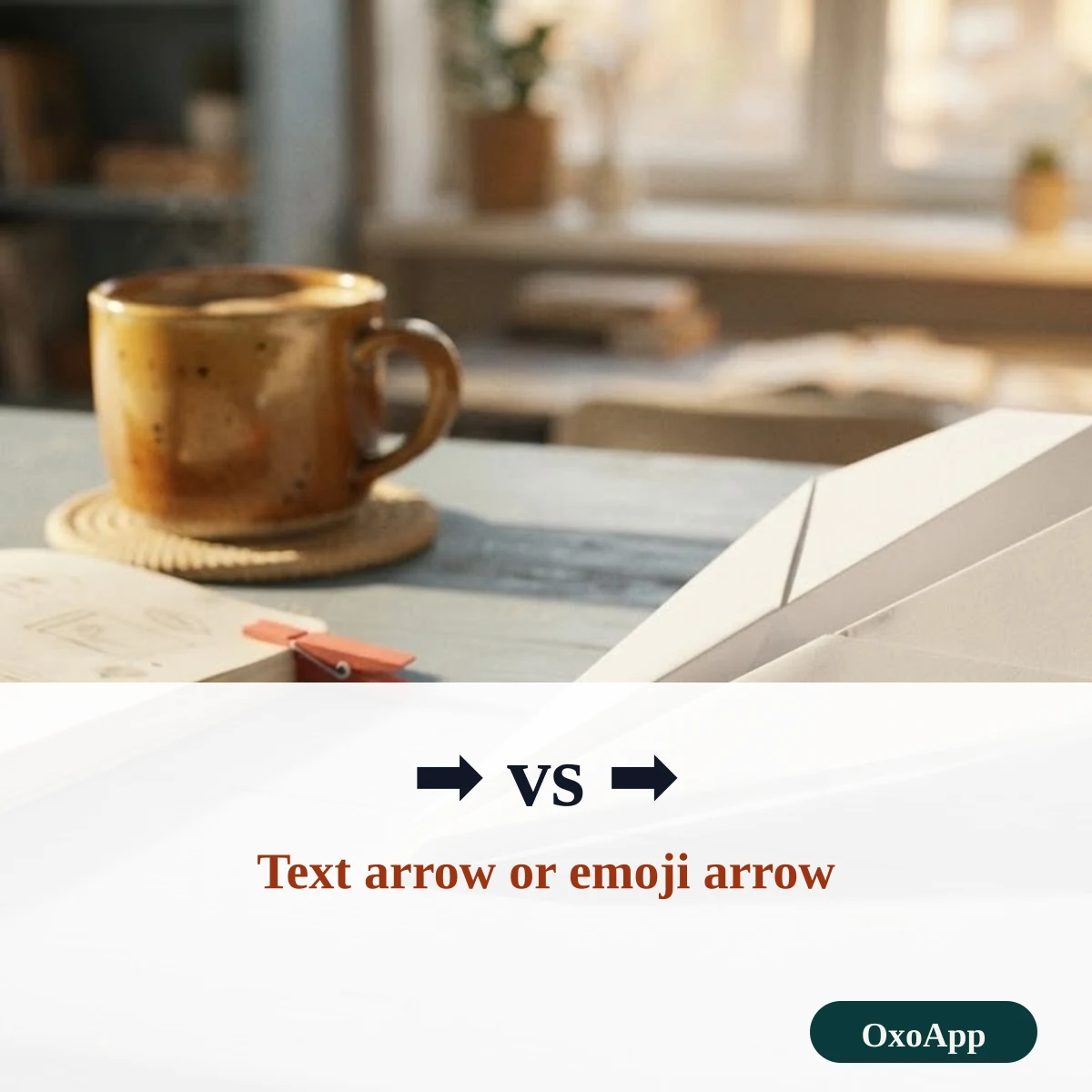
Several arrows exist in two looks. The plain text arrow takes the color of your text, and the emoji arrow is a colored picture. ➡ U+27A1 and its siblings ⬅ ⬆ ⬇ can be either, depending on whether the variation selector U+FE0F follows. The emoji group on this page includes that selector, so those arrows are copied as emoji. Use the plain groups if you want an arrow that matches your text color.
Choosing an arrow for the job
- Menu paths and steps: → or ➜, for example Settings → Privacy → Cookies.
- Logic and math: ⇒ means implies and ⇔ means if and only if.
- Undo and redo: ↩ and ↪ are the common marks for turn back and forward.
- Refresh and loops: ↻ and ↺ show clockwise and anticlockwise turns.
For more groups of signs, such as notes and clefs, see the music symbols page, or go to symbols copy and paste.
Using arrows in documents, slides and menus
An arrow is a small sign that does a lot of work. In a document, it can point from a cause to an effect, as in rain → wet roads. In a slide, it can link steps in a process. In an app, it can show the direction of a swipe or the next step of a path. Pick the arrow that matches the meaning, not only the look: a straight arrow shows direction, a double arrow shows a logical result, a curved arrow shows a turn or a return, and a circular arrow shows repeating or refreshing.
Arrows and screen readers
A screen reader announces an arrow by its Unicode name, such as rightwards arrow or leftwards double arrow. A single arrow between two words is clear. A long run of arrows can be tiring to listen to, so use one or two where meaning depends on them and write the direction in words when the content is important. Emoji arrows may be read with extra words, such as right arrow, which is the name given to the emoji.
Arrows in file names, code and plain text
Arrows are not safe in every place. File names on some systems reject unusual characters, and code usually expects the plain keyboard forms -> and => instead of → and ⇒. In a plain-text email or a form field, arrows may be replaced by question marks if the system does not use Unicode. In these cases, use the plain keyboard form and keep the arrow symbol for places where you control how the text is displayed.
Device check
Arrows are copied exactly as shown, with the code under each. We have not yet tested them on specific phones or systems. If one appears as a box, email [email protected] with the arrow, device and system version.
Frequently asked questions
How do I type an arrow on a keyboard?
In Word, typing –> turns into → and <-- turns into ←. On Windows, hold Alt and type 26 for →, 27 for ←, 24 for ↑ or 25 for ↓. On a phone, copy the arrow from this page.
What is the difference between ➡ and ➡️?
➡ is the black rightwards arrow, U+27A1. Followed by the variation selector U+FE0F it becomes the emoji ➡️, which many phones draw as a colored square arrow. Without it, the arrow may stay a plain text symbol.
What are the HTML codes for arrows?
Use ← for ←, → for →, ↑ for ↑, ↓ for ↓, ↔ for ↔ and ⇒ for ⇒. Any arrow also has a numeric code, such as → for →.
Which arrow is best for a bio or a list?
Simple arrows such as → and ➜ are drawn in almost every font, so they are the safest. Rare arrows from the supplemental blocks may show as boxes on older devices.
Back to OxoApp.
Updated